1. Mesh Service
  2. Network analysis

Ultra licence

Network analysis for Bluetooth Mesh

Mesh Service records the radio traffic of an installation and decrypts it with the keys of the project. You see which device does not answer, which devices forward a lot and how far messages travel through the network.

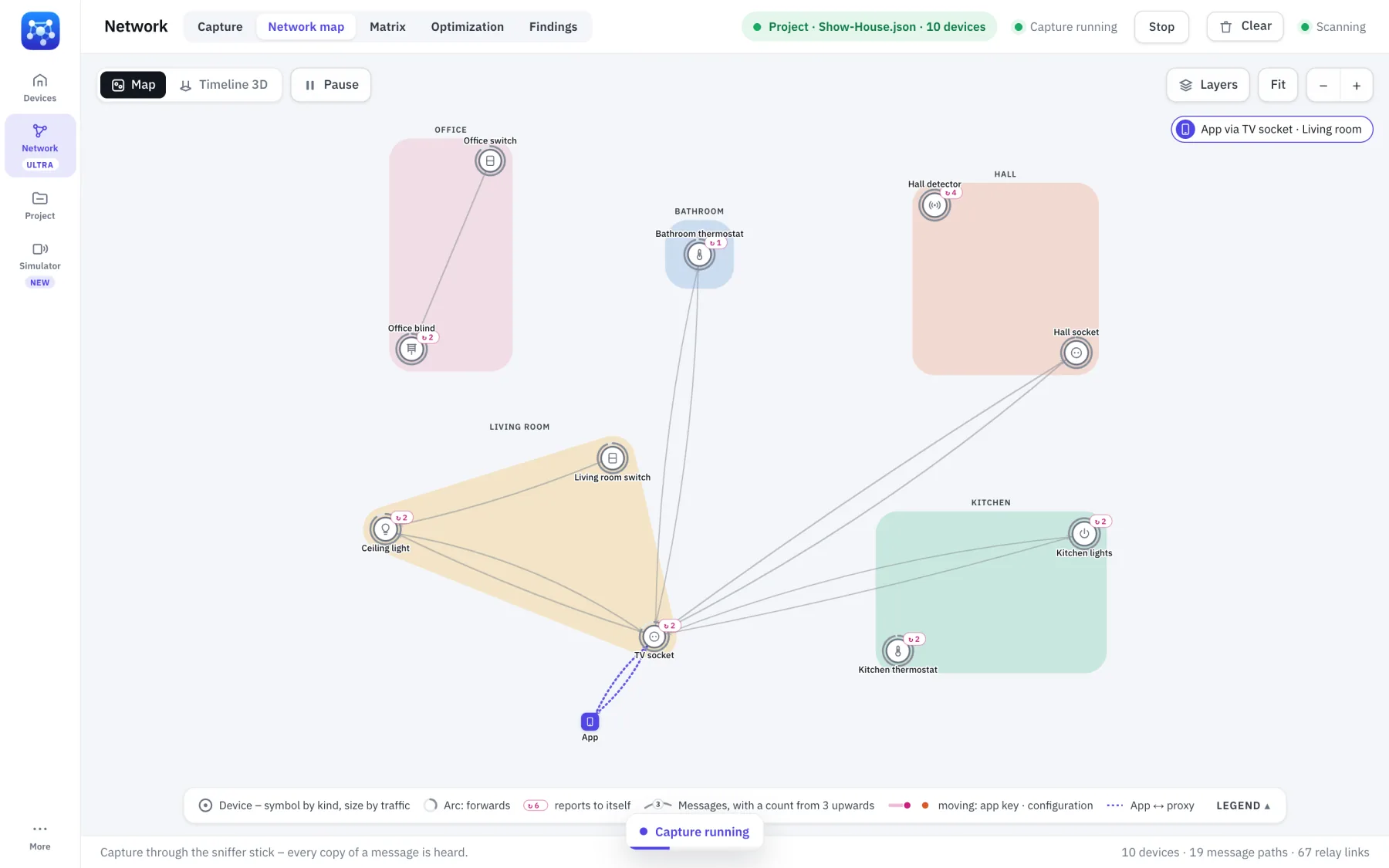
Network map of Mesh Service with ten devices in five rooms, lines for the message paths and the app at its proxy device

Requirements

The project of the installation

Capture, network map and inspection need the keys of the network. After a run on the same computer, the project is already loaded. For other installations, you load the export from the JUNG HOME App or a Steinel.json.
Bluetooth on the computer

For a capture through a device in the network, for the network check, the load test and “Apply plan”, the computer’s Bluetooth adapter is enough.

Sniffer stick, optional

A Nordic nRF52840 dongle receives every copy of every message. The matrix, forwarding and reach are available only with it.

The views

All views work with the same capture and the same project.

Capture

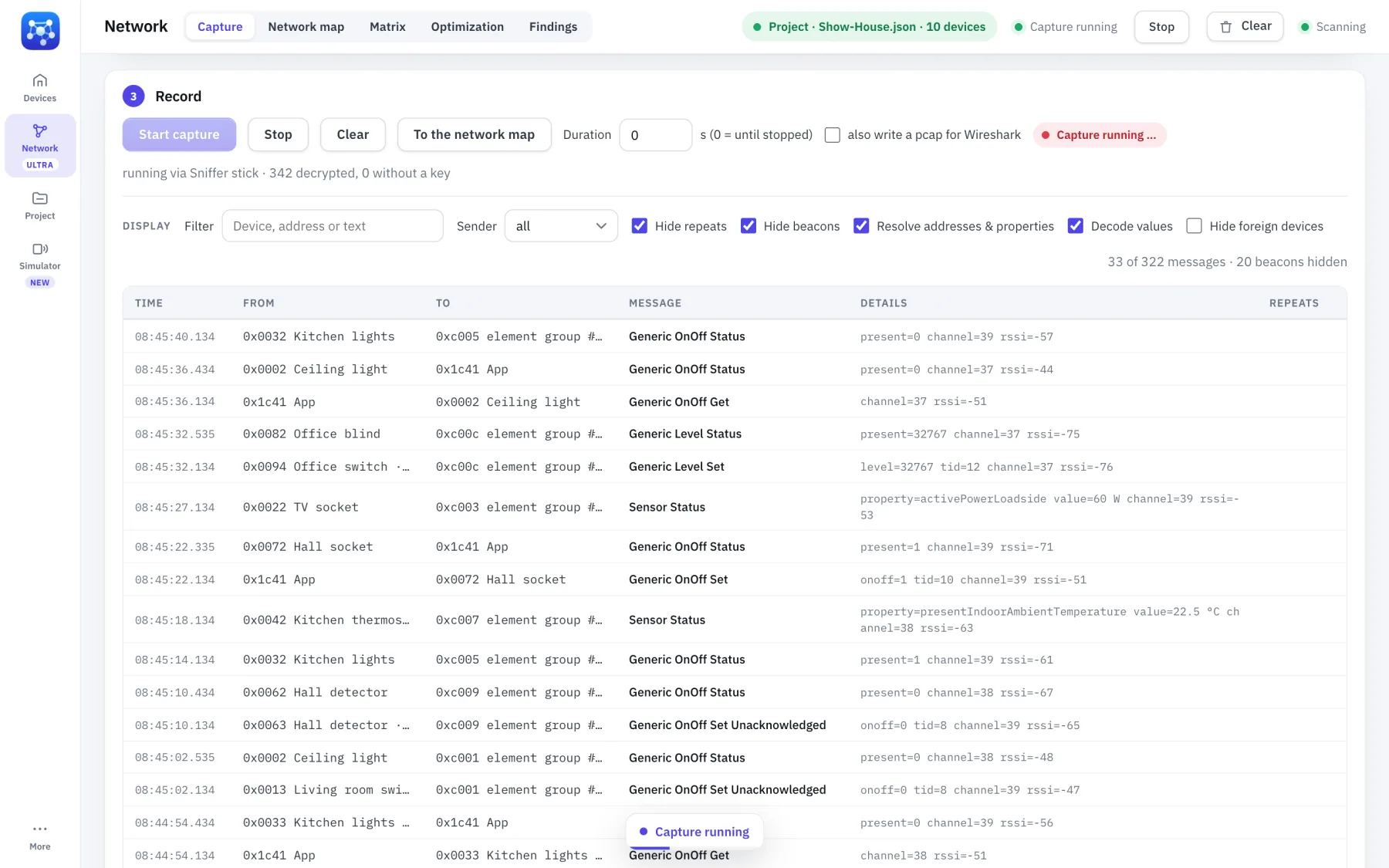
The capture decrypts the radio traffic and assigns each message to its sender. This covers button presses, switching commands, status messages, sensor values with their unit (including dew point and heat index) and everything the app sends during setup.

  • Listening in through a device in the network or through the sniffer stick
  • Filters for sender, repeats, beacons and foreign devices
  • Saving as JSON Lines or as pcap for Wireshark
  • Saved captures can be evaluated again on the command line
Capture with decrypted mesh messages showing time, sender, destination, message and decoded values

Network map

The map shows the devices arranged by room, each with the symbol of its kind. The size follows the traffic. Lines show who exchanges messages with whom, and pulses show the running traffic. The app appears at the device through which it is connected.

  • Arrangement by rooms or by forwarding neighbourhood
  • The map adopts group changes made in the app during the capture
  • A click on a device shows counters, roles and access to the parameters
  • With the sniffer stick, forwarding appears as arcs around the devices
Network map with rooms, devices, message paths and the app at its proxy

Timeline 3D

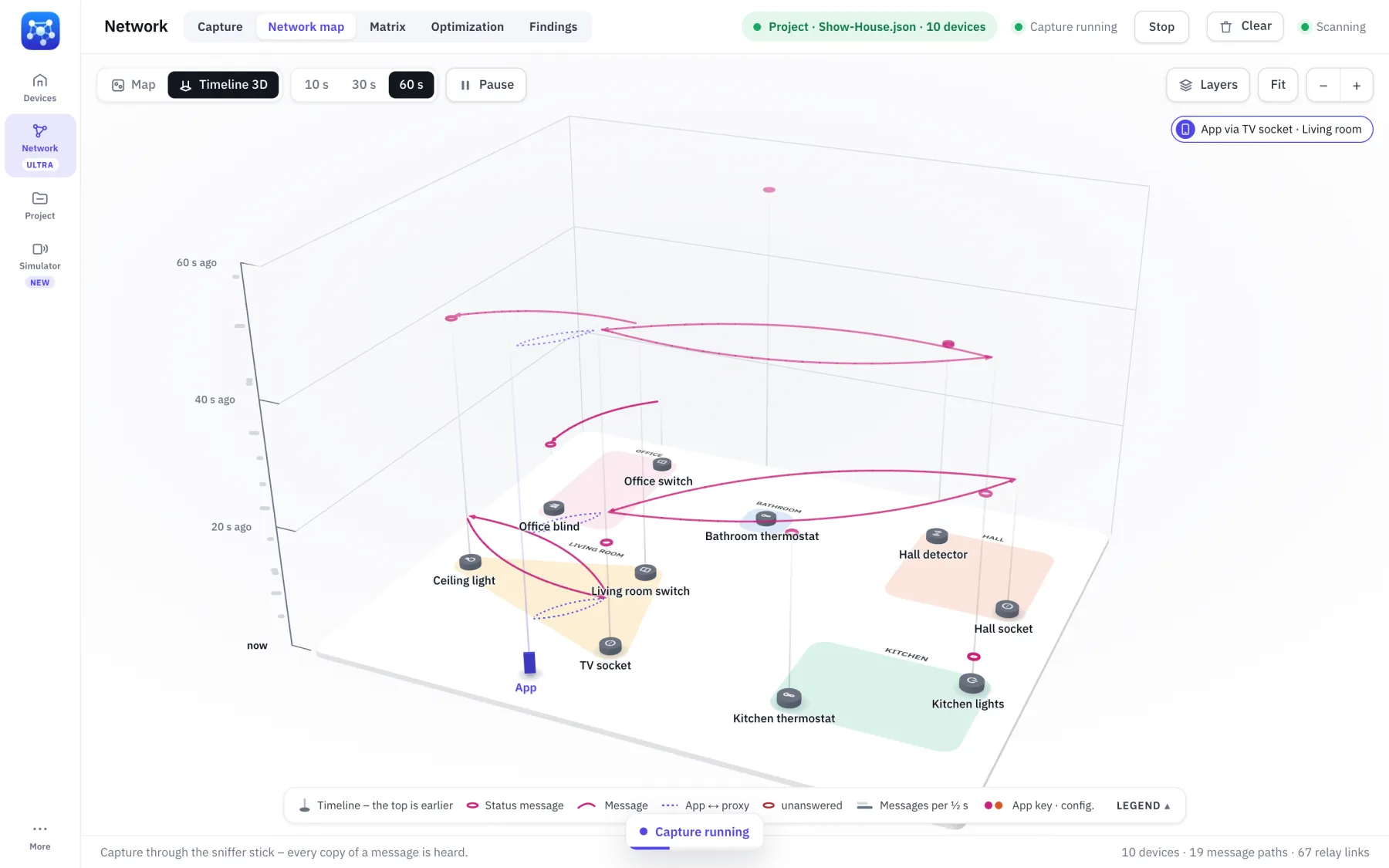
Timeline 3D tilts the map backwards and turns time into height. Status messages appear as rings above their device, messages between devices as arcs. A request that had no answer after two seconds is marked in red.

  • Time window of 10, 30 or 60 seconds, resolution of 0.1 seconds
  • A click on a message shows the devices it passed through
  • Needs WebGL 2
Timeline 3D with the network map as a surface and the messages of the last 60 seconds above it as arcs and rings

Matrix

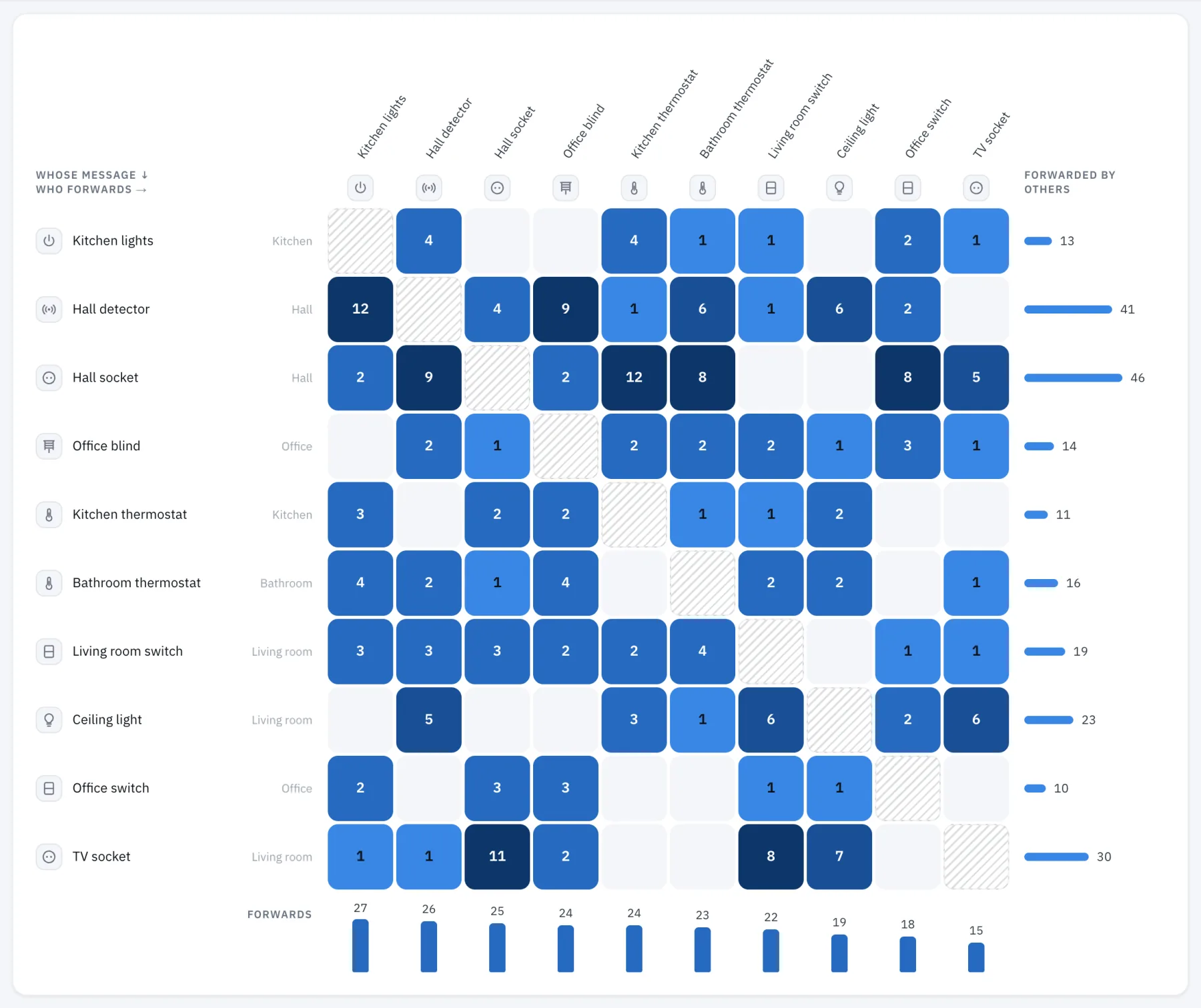
The rows hold the senders, the columns the forwarders. Each cell counts how often one device forwarded the messages of another. The totals at the edge show which devices carry most of the forwarding.

  • Order by load or by room
  • Shows links that work in one direction only
  • Needs the sniffer stick
Matrix of the forwarding with coloured cells that count the forwarded messages per pair of devices

Optimization

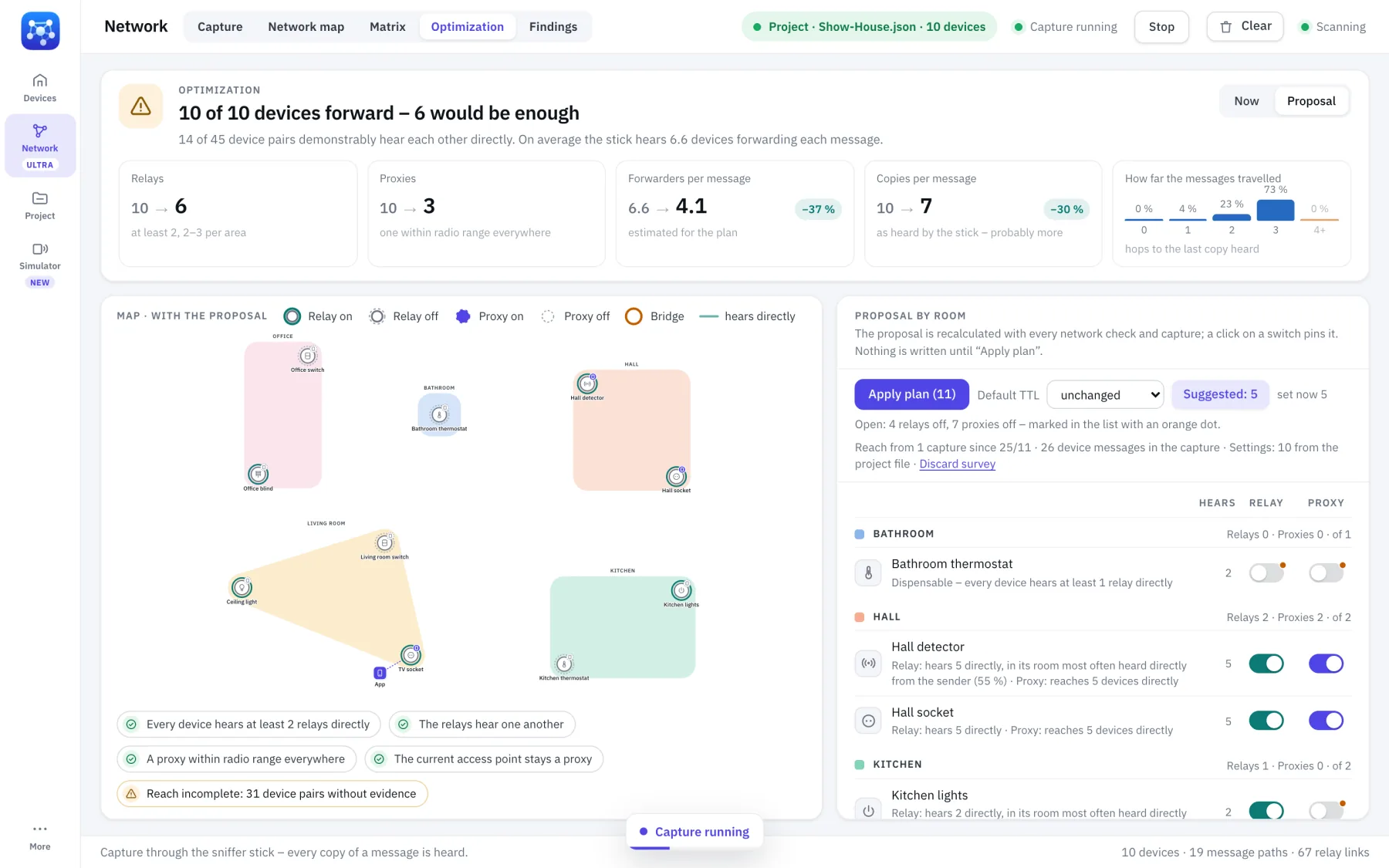
When many devices forward, every message is repeated often and the network carries more load than necessary. Mesh Service proposes which devices stay relays, which accept connections from the app (proxy) and which TTL is enough. This corresponds to the “Project optimization” of the JUNG HOME App. “Apply plan” first writes everything that switches something on, then everything that switches something off, and finally the TTL. Each device confirms its setting.

  • Each device hears at least two relays directly
  • At least two relays and two proxies stay on
  • The app’s current access point stays a proxy
  • Afterwards, the page shows the air load before and after
Optimization with the proposal for relays and proxies per room, the figures now and with the proposal, and the “Apply plan” button

Findings

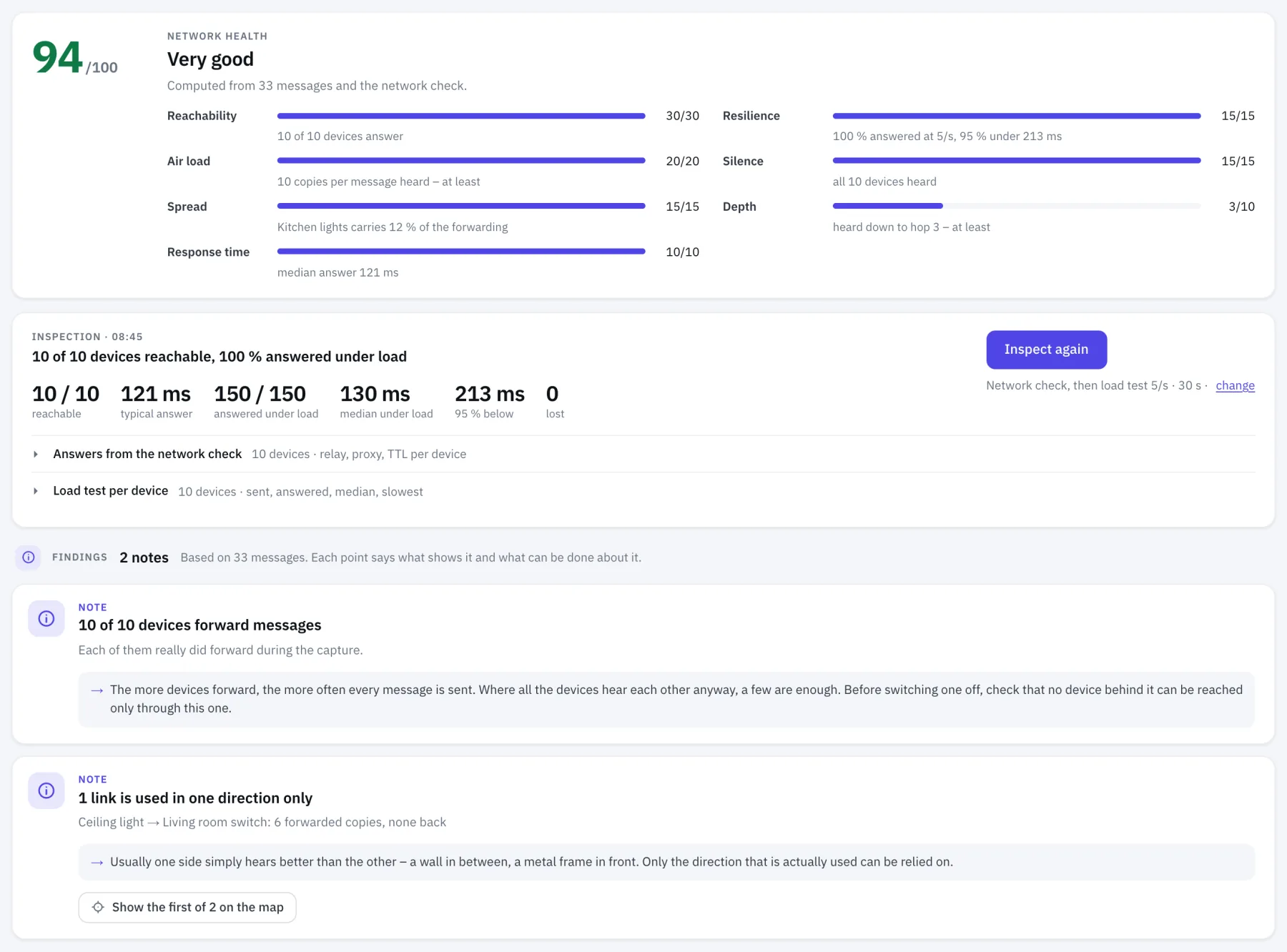
“Inspect network” asks every device of the project whether it answers, how long it takes and what it is set to. It then loads the network with read requests for a while. From these measurements and the capture, Mesh Service calculates the network health from 0 to 100 and lists the findings with evidence and a recommendation.

  • Load test with 2, 5 or 10 requests per second for 30 or 60 seconds
  • The inspection only reads and changes nothing
  • Also works in installations that were not set up with Mesh Service
  • “Show on the map” selects the affected device on the network map
Findings with network health 94 of 100 and seven parts, the inspection with response times and the load test

Network health

From 90 points, the network counts as very good, from 75 as good, from 50 as fair, and below that as poor. Parts that were not measured do not count. The line below the number says what it was calculated from.

PartPointsMeasured byWhat counts
Reachability30Network checkHow many devices answer
Resilience15Load testShare of answered requests, halved if 95 % of the answers take one second or longer
Air load20Capture with the sniffer stickMedian copies per message; up to 10 cost nothing, from 20 there are no points
Silence15CaptureDevices from which nothing is heard, or nothing any more
Spread15Capture with the sniffer stickWhether a single device carries most of the forwarding
Depth10Capture with the sniffer stickDown to which hop a message was still heard
Response time10Network checkDevices that answer much more slowly than the others

Findings

Each finding gives the level, the evidence and a recommendation. Findings based on forwarding are available only with the sniffer stick.

FindingLevelAppears when
Devices without an answerErrorThe network check asked a device directly twice and got no answer.
Devices drop out under loadErrorA device left one request in ten or more unanswered in the load test.
Losses or slow answers under loadWarningIn the load test, 2 % of the requests or more were lost, or 95 % of the answers took one second or longer.
Many copies per messageWarningA median of 12 or more copies per message was heard. From 20, it counts as an error.
TTL larger than necessaryWarningThe TTL is at least 3 above the deepest hop heard.
Messages in piecesWarning10 % of the messages or more do not fit into one packet.
One device carries the forwardingWarningA device carries more than 40 % of the forwarding heard.
Devices that sent nothingWarningA device sent nothing in the capture, and the network check did not ask it.
Devices fell silentWarningA device has sent nothing for more than 120 seconds while others can be heard.
Slow devicesWarningIn the network check, a device takes at least four times as long as the median, and at least 300 ms.
Many relaysNoteThe relay is on in 60 % or more of the devices asked.
Links in one direction onlyNoteOne device forwards for another, and the other does not forward for it.
Foreign networksNoteA quarter of the packets or more do not match the keys of the project.
Capture through a deviceNoteThe capture runs through a device instead of the sniffer stick and therefore does not hear every copy.

Sniffer stick

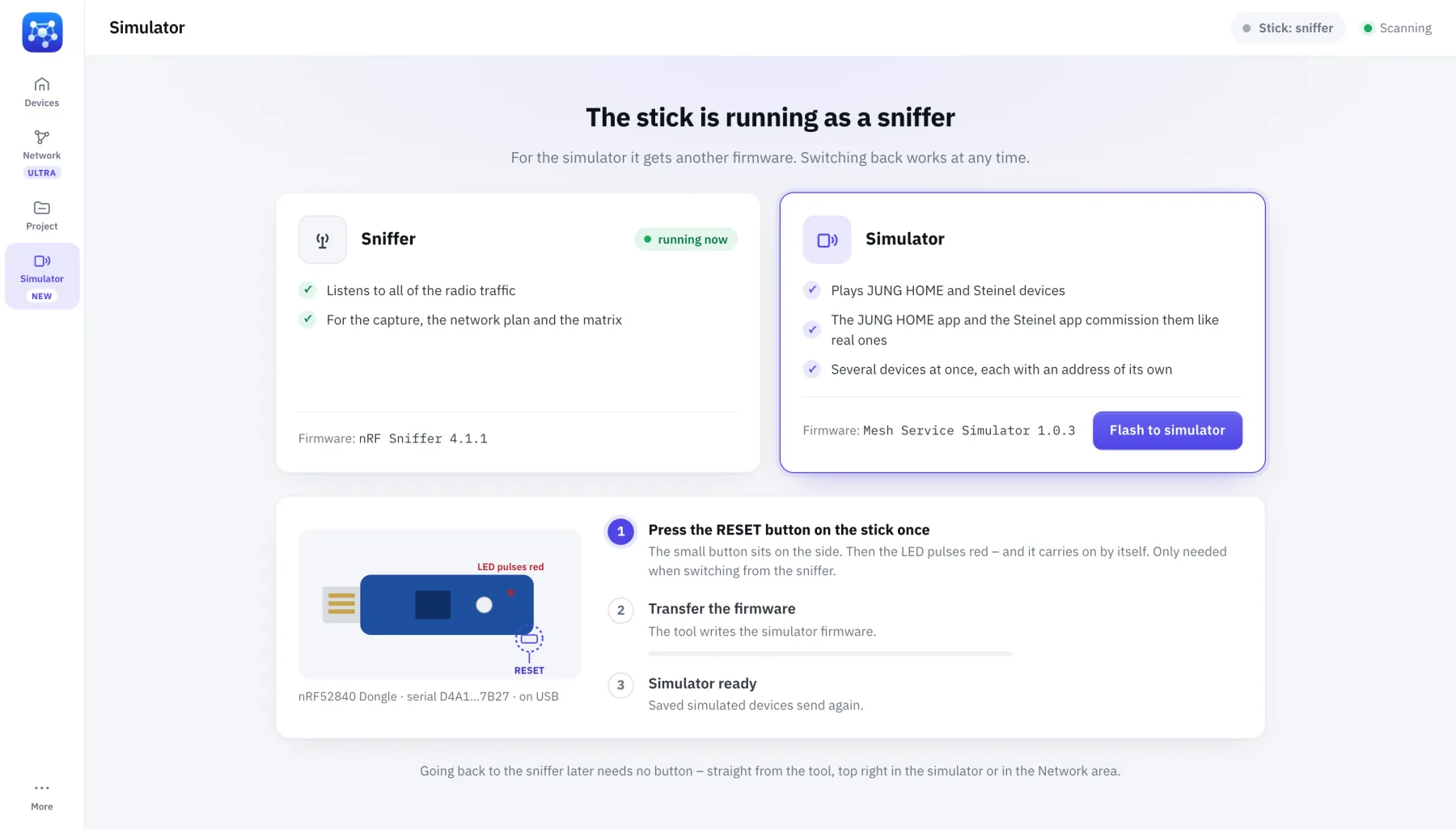
A Nordic nRF52840 dongle receives the radio traffic on all three advertising channels. It hears every repeat and every forwarded copy, including those from devices out of the computer’s range. Mesh Service flashes the sniffer firmware itself. Because the stick does not need the computer’s Bluetooth adapter, the network check, “Apply plan” and the parameters keep working alongside the capture.

  • Needed for the matrix, forwarding, air load and reach
  • The same stick can also run as the device simulator
  • Switching back to the sniffer needs no button press
Switching the stick to the simulator in three steps, beside a drawing of the stick with its RESET button

Frequently asked questions about network analysis

Do I need a sniffer stick?

No. The capture also works through a device in the network with the computer’s Bluetooth adapter, and the network check, the load test and the Optimization view do not need a stick. For the matrix, forwarding, air load and reach, you need a Nordic nRF52840 dongle. Mesh Service flashes the sniffer firmware itself.

Can I inspect an installation that I did not set up myself?

Yes, if you have its keys. Load the export from the JUNG HOME App or a Steinel.json with “Load project …”. In a foreign network, Mesh Service transmits under an address that no device uses. The address of the app that set up the network stays untouched.

Does the inspection change anything in the installation?

No. The network check and the load test only read. Nothing changes until you click “Apply plan” under “Optimization”. Each device then confirms its new setting.

Can I open a capture in Wireshark?

Yes. Mesh Service saves the capture as JSON Lines and, if required, also as pcap for Wireshark. Saved captures can be decrypted again on the command line with the keys of a project.

Which licence do I need for network analysis?

The Ultra licence. With a Pro licence, the “Network” area shows that Ultra is needed and offers to request an Ultra licence.

App icon of Mesh Service

Download and licence

Download the program and request the licence from within it. If you have questions, write to us.